
Identify the packaged product
Use a camera, keyboard or barcode scanner to look up the product record. Read reported allergens first, then ingredients, nutrition and published scores.
Free VISINVOKE utility
Find the product.
Read the reported facts.
Compare on the same basis.
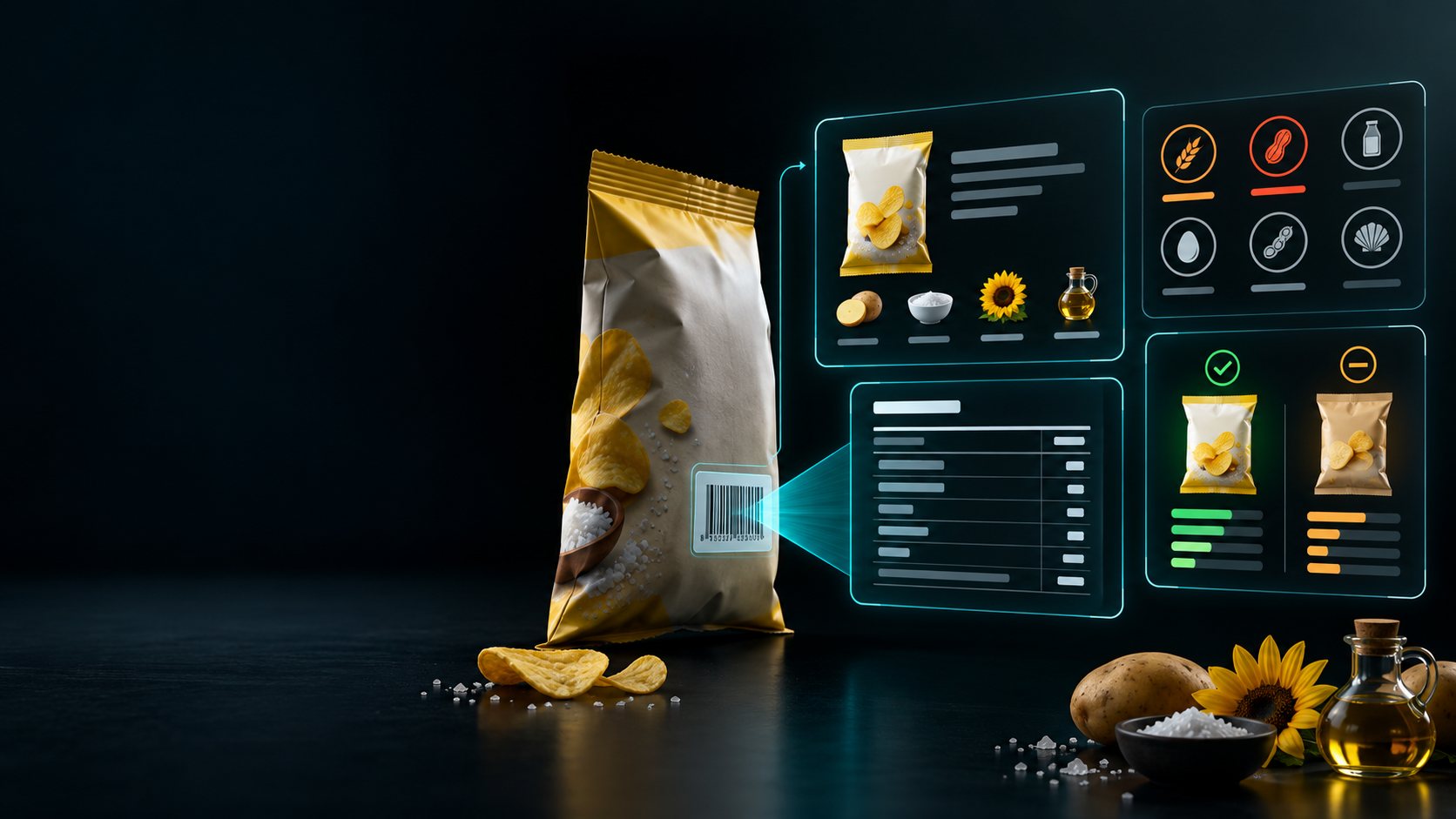
From barcode to product record
A clear product lookup with credited information and honest limits.
Use a camera, keyboard or barcode scanner to look up the product record. Read reported allergens first, then ingredients, nutrition and published scores.
Community records can be incomplete. Missing facts are not reported, rather than zero; check the physical pack, especially for allergens.
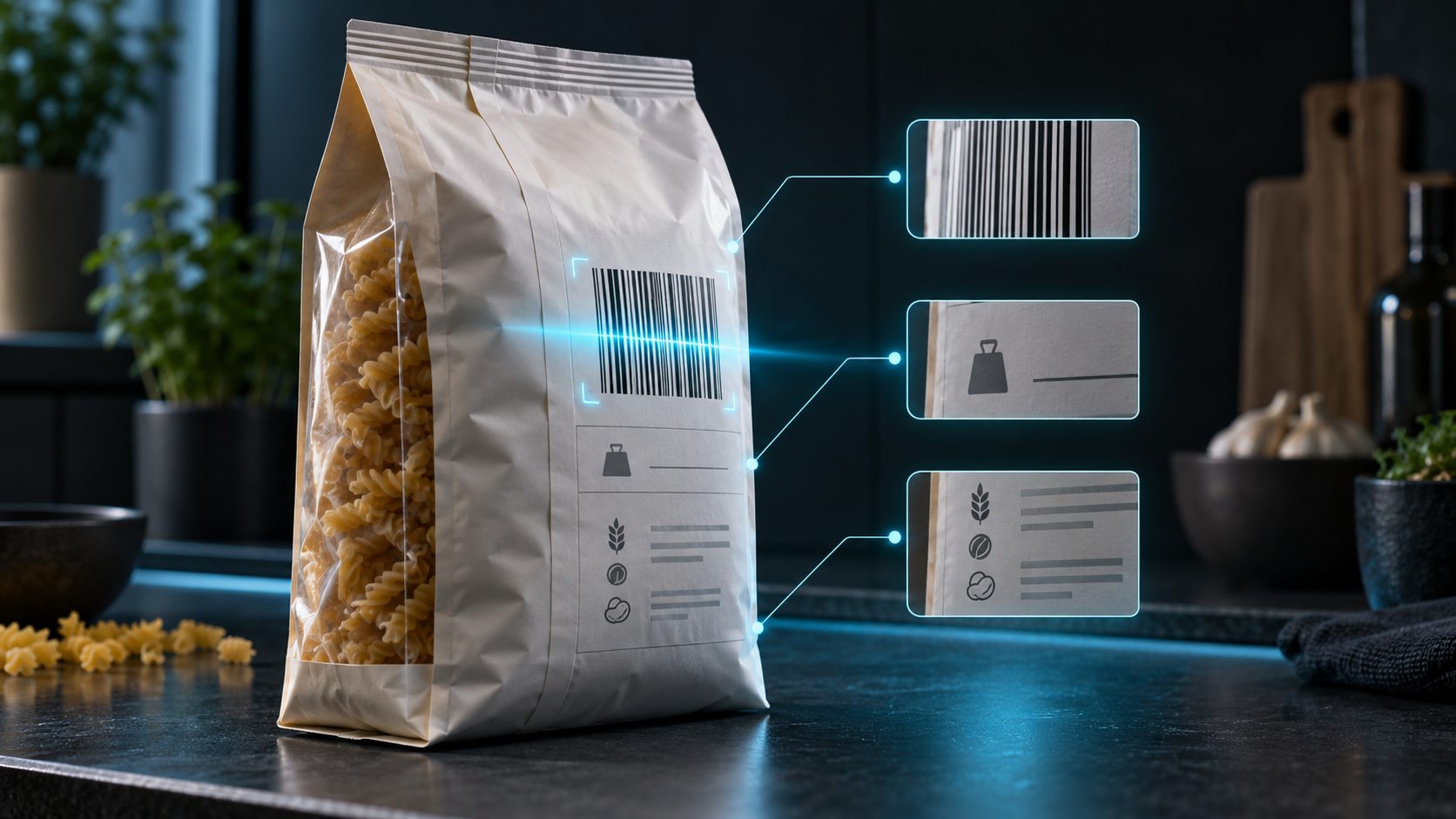
Identify the exact product
An unbranded pasta package connects to illustrated panels for its barcode, pack size and ingredient-side information. The image shows product identification rather than a real product photograph.
Scan with your Android camera, type the barcode on Windows or use a USB scanner. Supported EAN and UPC formats connect the number to a packaged-food record.
What you can use
Read the available record without turning missing information into an answer.
Scan with your Android camera, type a barcode on Windows or use a USB barcode scanner. Look up the packaged product rather than a general food description.
Use EAN-13, EAN-8, UPC-A or UPC-E. Barcode checks help identify the record to look up.
Read the allergens reported in the product record before the other details. Check the physical pack, especially when allergen information matters.
See the ingredients in their supplied order. Keep the product’s published information distinct from a rewritten description.
Read nutrition per 100 g or per serving. Keep the basis visible when comparing amounts across products.
View the record’s published Nutri-Score and NOVA group as source information. These are not a VISINVOKE judgement about the product.
Line up products and compare reported nutrition and published scores. Use a consistent basis and check the package details.
Keep favourites and recent scans on your device so you can return to the products you looked up.
Missing facts appear as not reported, rather than zero. Community records can be incomplete; the physical label has the final word.
Use the VISINVOKE-hosted copy of Open Food Facts. See the data version, contributor credit and source product page alongside the information.
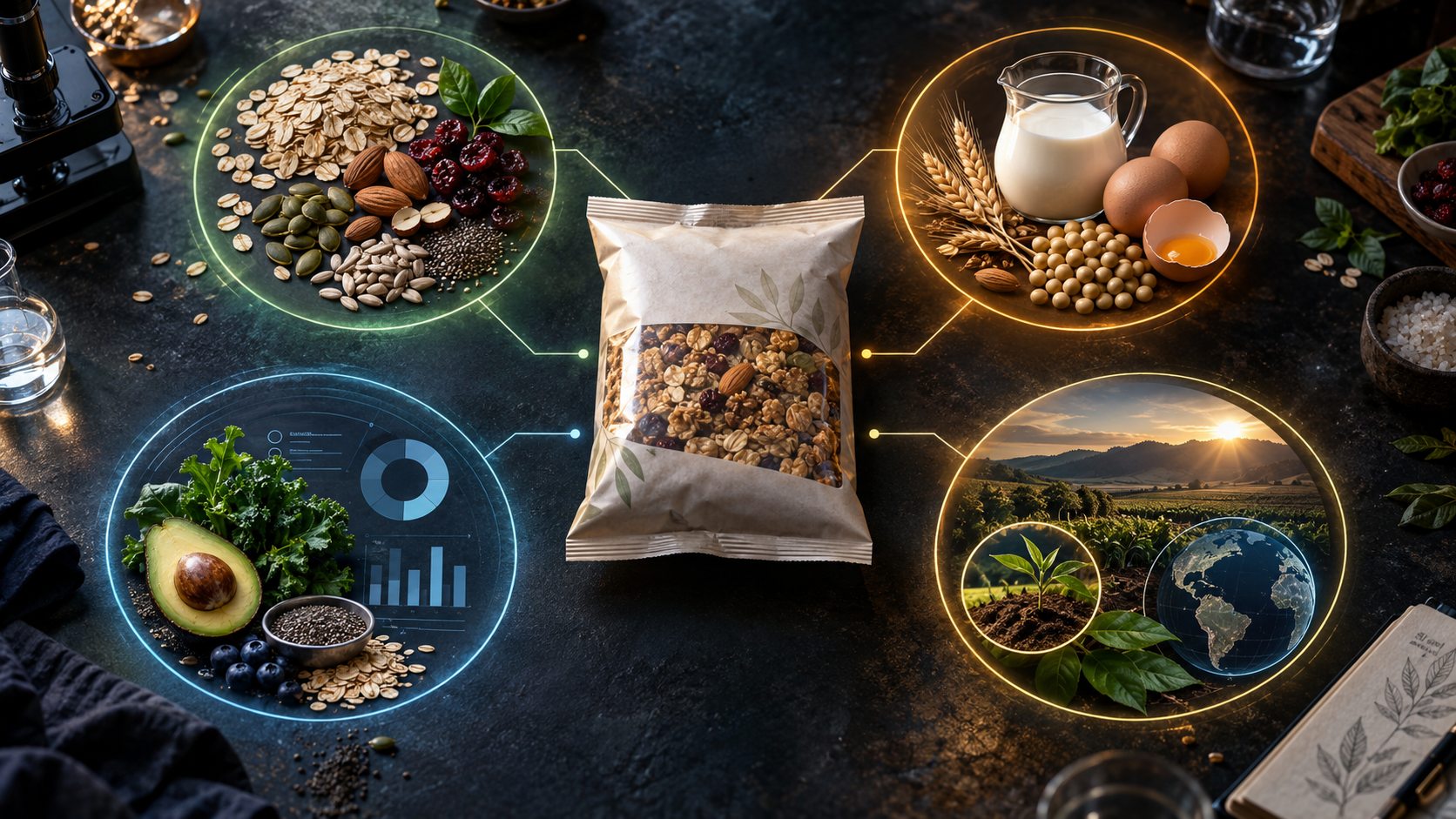
Read the matched record
An illustrated cereal package sits between panels showing ingredients, allergen-related foods, nutrition graphics and source context. These are explanatory product visuals.
Read reported allergens first, then ingredients, nutrition and published scores. Check the data version and source product page, and compare the record with the physical label.
A practical lookup flow
Choose the record and reading basis that match the pack.
Use the Android camera, Windows keyboard or USB barcode scanner. The Android capture returns the barcode number for lookup.
Start with the record’s allergen information. Check the physical label rather than treating missing information as evidence of absence.
Switch between per 100 g and per serving where reported. Keep that basis consistent when comparing products.
Review contributor credit, the source product page and the displayed data version. Treat incomplete fields as not reported.
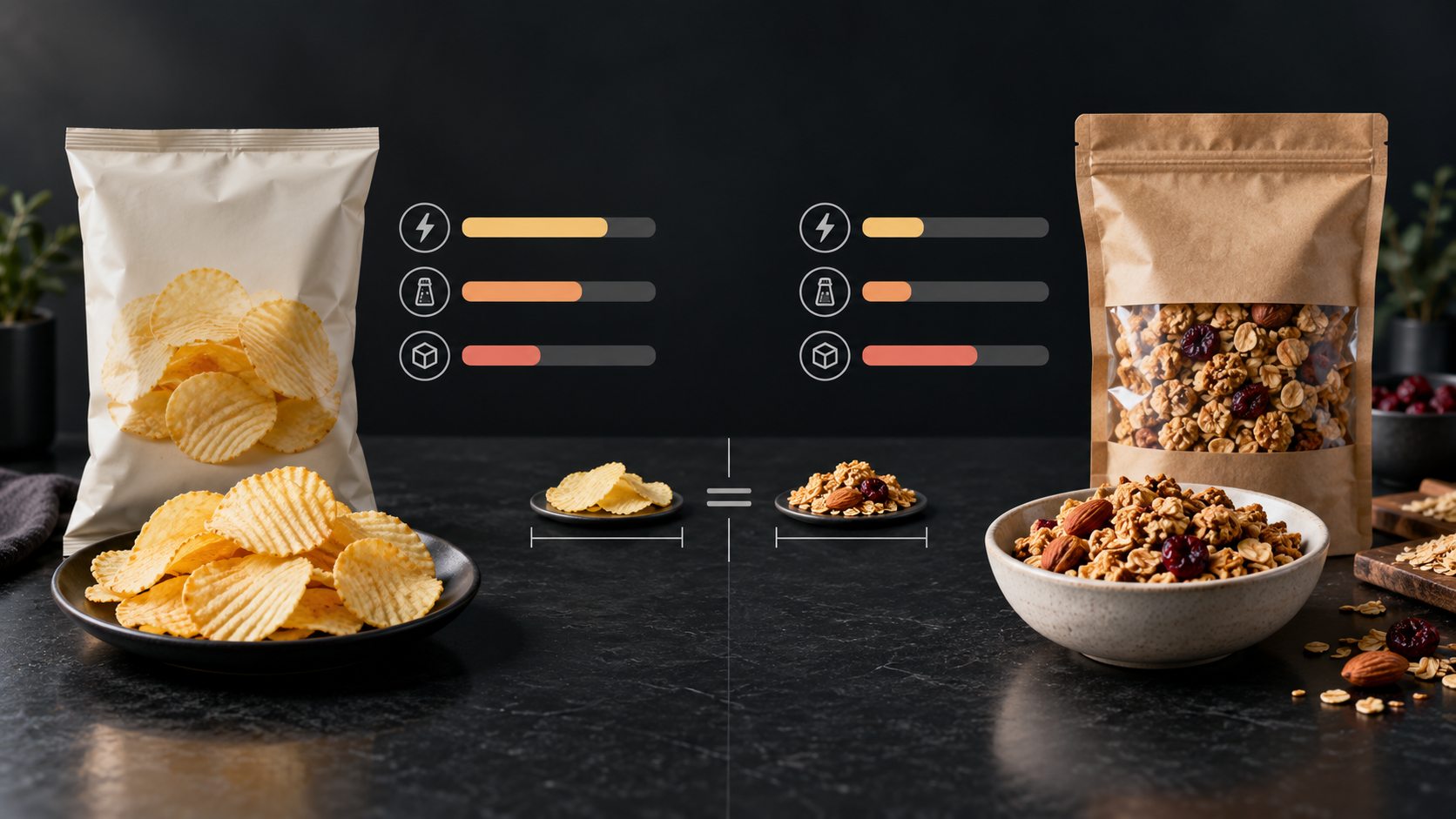
Side-by-side product comparison
Two unbranded packs sit beside aligned comparison bars and portions. The illustration places a crisp package and cereal package on a common comparison layout.
Line up reported nutrition and published scores, keeping the per 100 g or serving basis clear. Review ingredients and pack details alongside the comparison.
Keep useful references
Local favourites, recent scans and clear source information.
Keep a product as a favourite so you can return to its record without starting the search again.
Revisit recent barcode lookups in the same device’s scan history.
Product information comes from Open Food Facts contributors and uses the Open Database Licence. Keep the source credit with the record.
Nutri-Score and NOVA are shown as published source data. Missing values stay not reported; the physical label remains the final reference.
Your workspace and related products
Open products through your account.

Open Packaged Food Scanner in your signed-in workspace. Get Desktop Control Centre through your account installer page for Windows and Android access.
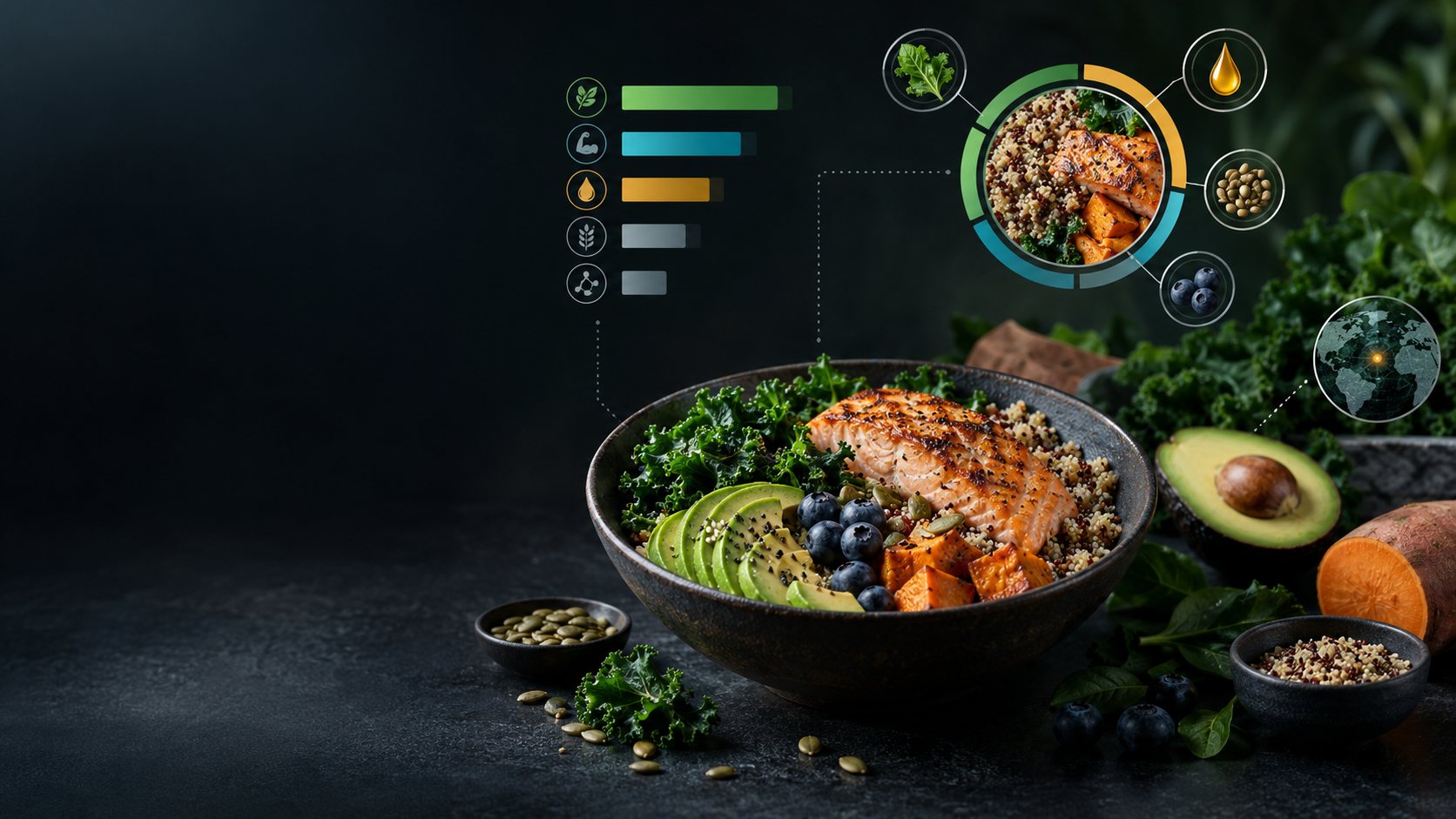
Explore food and nutrient information in the separate Food & Nutrition Explorer. Packaged Food Scanner focuses on the record identified by a packaged product’s barcode.
Images are product illustrations. Community product records can be incomplete; check the physical label, especially for allergens.
Questions and answers
Barcode lookup, comparison, sources and account access.
Scan a barcode with the Android camera, type it on Windows or use a USB barcode scanner. EAN-13, EAN-8, UPC-A and UPC-E are supported. The barcode identifies the product record to look up.
Reported allergens appear first, followed by ingredients, nutrition per 100 g or per serving and the published Nutri-Score and NOVA group. Missing facts are shown as not reported, never as zero.
Yes. Compare products side by side using their reported nutrition and published scores. Check that you are using the same nutrition basis and the right package details.
The VISINVOKE-hosted copy of Open Food Facts. Product data is credited to Open Food Facts contributors under the Open Database Licence, with the source product page linked and the data version shown in the app.
Community product data can be incomplete. Check the physical label, especially for allergens. Published scores are source information rather than a VISINVOKE judgement.
Create a free VISINVOKE account or sign in. Get Desktop Control Centre through your account installer page and open Packaged Food Scanner on Windows or Android. The utility is free with your VISINVOKE account.
Continue in VISINVOKE
Create a free VISINVOKE account or sign in to your existing account. Get Desktop Control Centre through your account installer page.
Open Packaged Food Scanner on Windows or Android. This VISINVOKE utility is free with your account.